

Hey there, it’s Reggie! Ready to help you keep customer accounts tidy and up-to-date.
With register’s new Customer Account Balance and Take Payment on Account features, you can view what customers owe and accept payments toward their balance right from the POS. No extra systems, no extra steps. Let’s walk through how to turn it on and how to use it!
Enable Permissions #
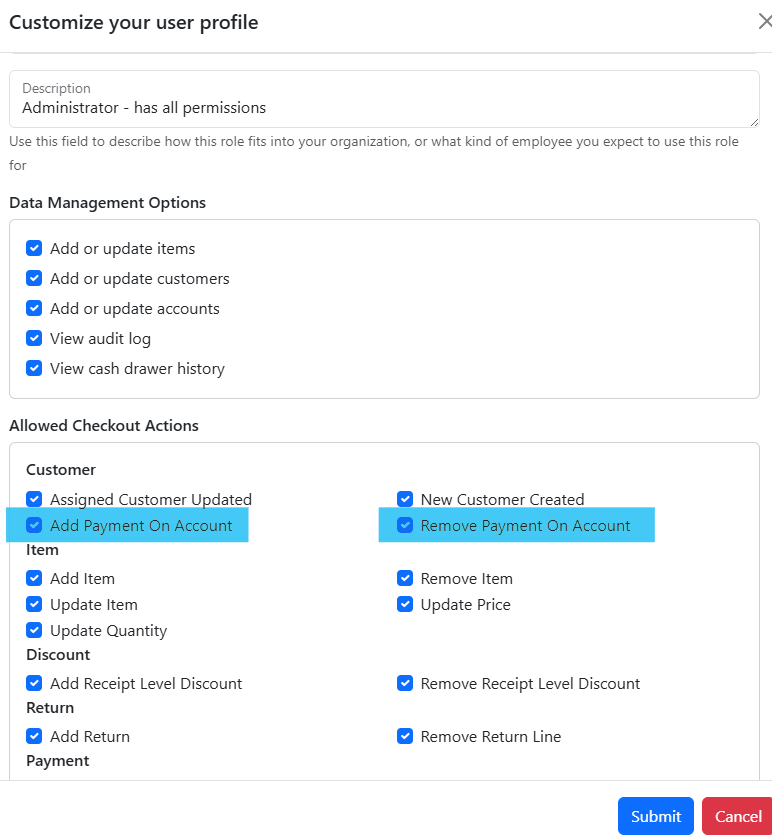
Before taking payments on account, double-check that your register organization has the permissions Add Payment on Account and Remove Payment on Account turned on for the appropriate user profiles. This lets you control exactly who can process these payments.
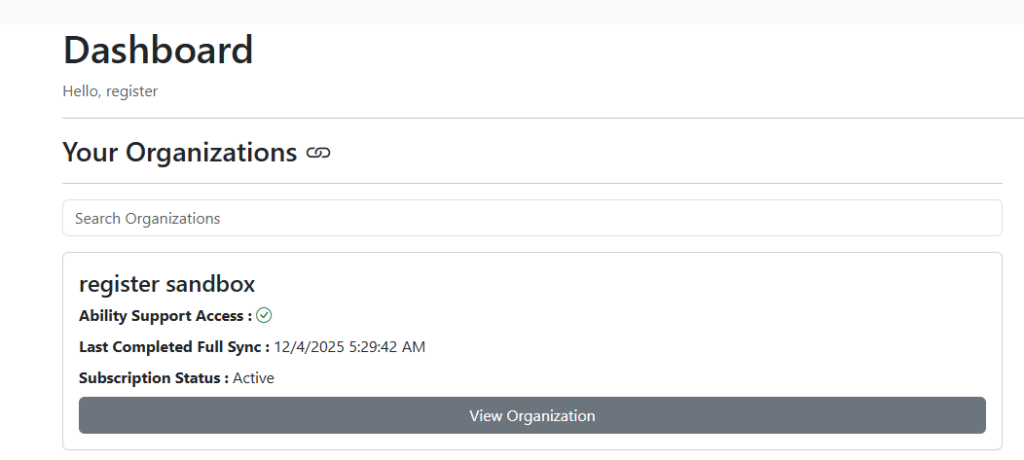
- Log in to your register dashboard and select view your organization.
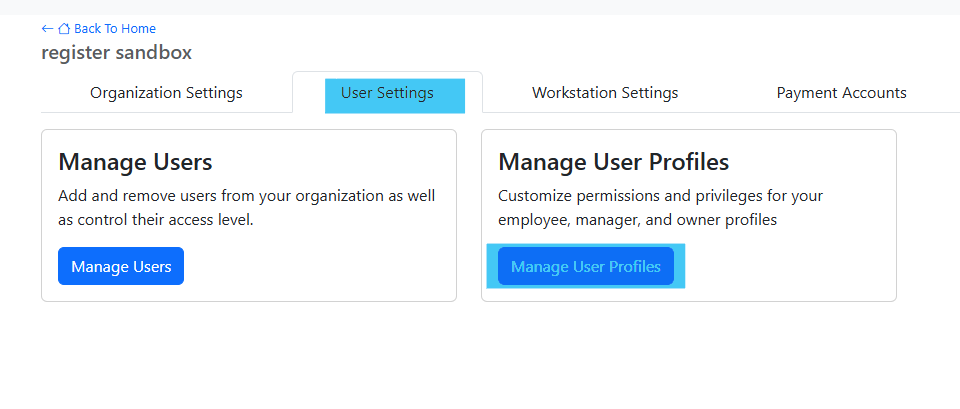
- Select the User Settings Tab and click on Manage User Profiles.
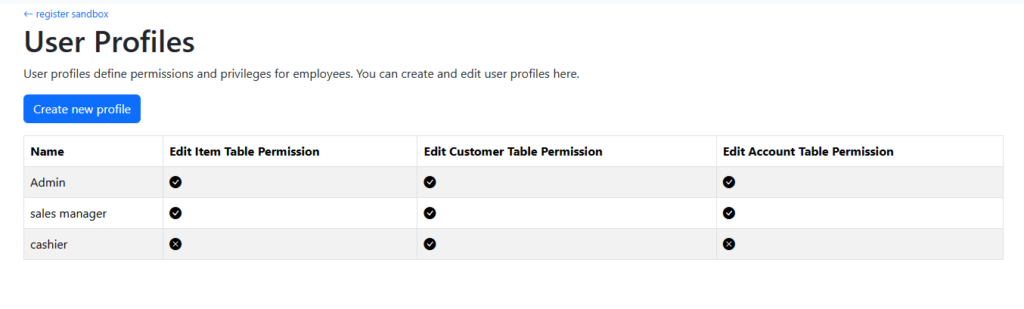
- Select the user profiles to update.
- Check the boxes for Add Payment on Account and Remove Payment on Account & submit.
Reggie Tip: If your store offers house accounts, installment plans, or delayed billing, this checkbox is your new best friend.
View a Customer’s Account Balance #
You can now view a customer’s outstanding balance directly inside register.
You can see a customer’s balance in two spots and here’s a little bonus! register tells you when that balance was last updated, and if you ever want the freshest info, just hit the Refresh button.
From the Customer Profile: Open a customer’s profile to see their current account balance and activity.
- Select Menu – Customers
- Search or select the customer you want.
- Their Account Balance appears in the lower section of their profile.

During checkout: When the customer is added to a sale, you can quickly view their open balance by selecting Payment on Account from the Actions section.
- Start a sale.
- Add the customer to the transaction.
- Select Payment on Account from the Actions section.
- View the balance below their name.
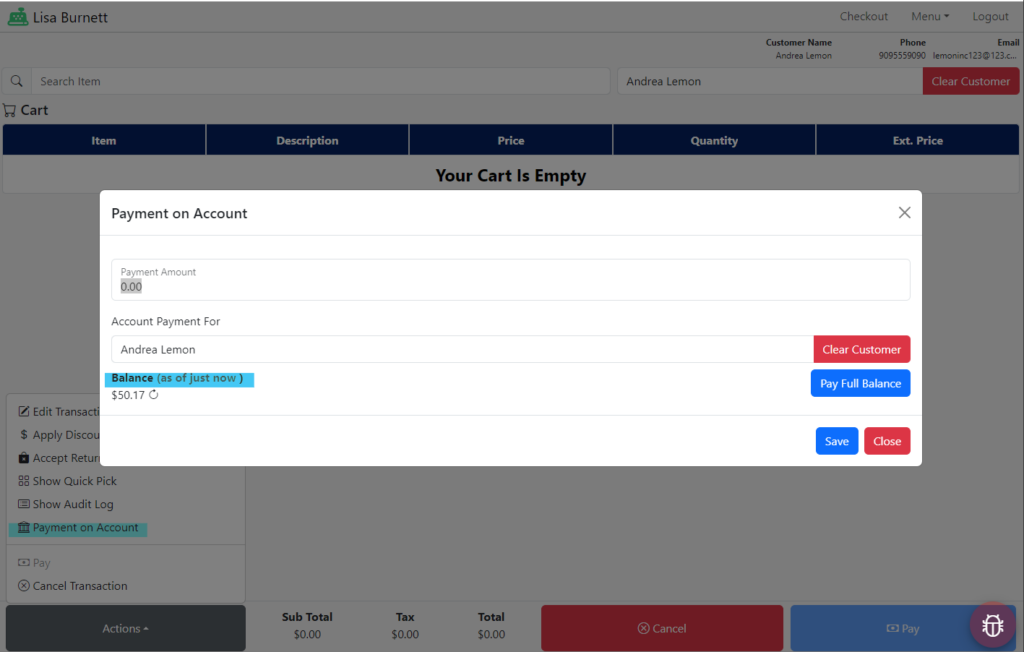
Reggie Tip: Great for quick reminders at the checkout like “Hey Andrea, would you like to take care of that $50.17 today?”
Take a Payment on Account #
This one’s the star of the show! Use this when a customer wants to make a payment on their account.
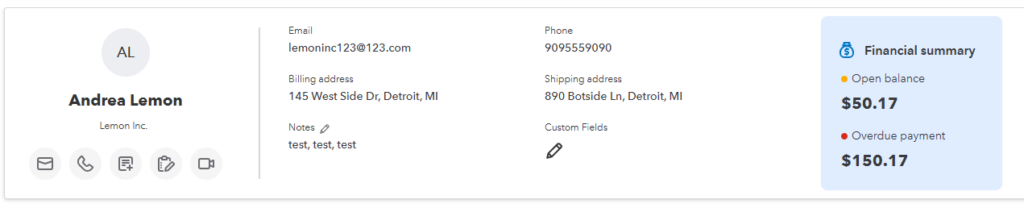
Andrea Lemon would like to make a payment on her account. She has an open balance of $50.17. I’ll take you through the steps to take a payment on account at register.
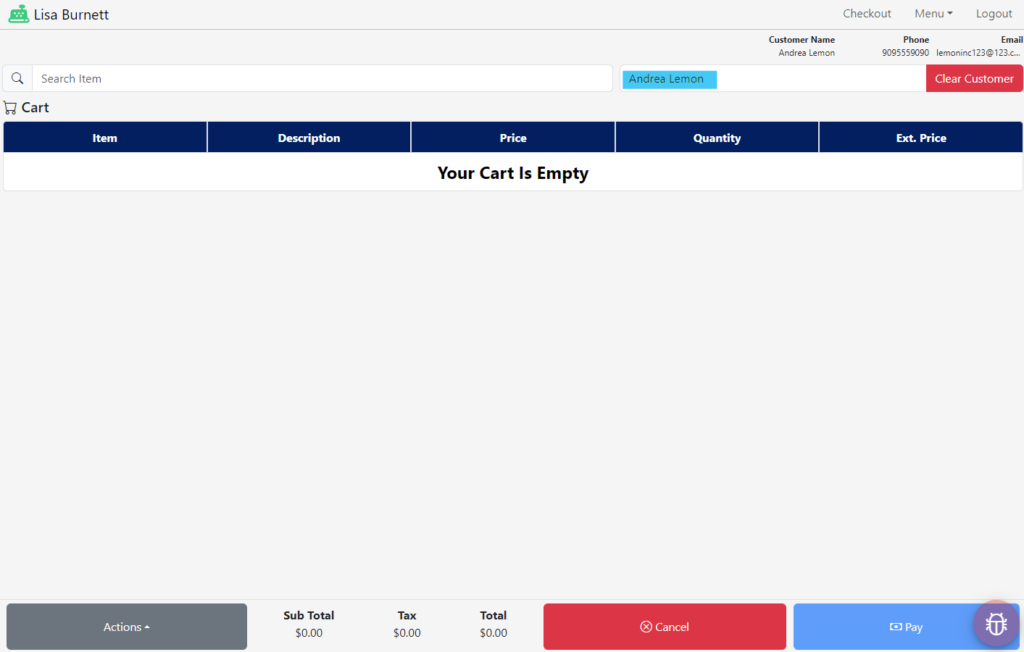
- On the checkout screen, select the customer.
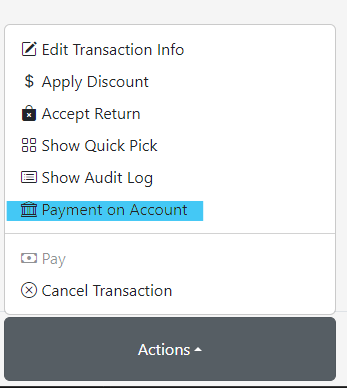
- Under Actions, select Payment on Account.
- Enter the payment amount and save. Reggi Tip: There is also a quick button for Pay Full Balance.
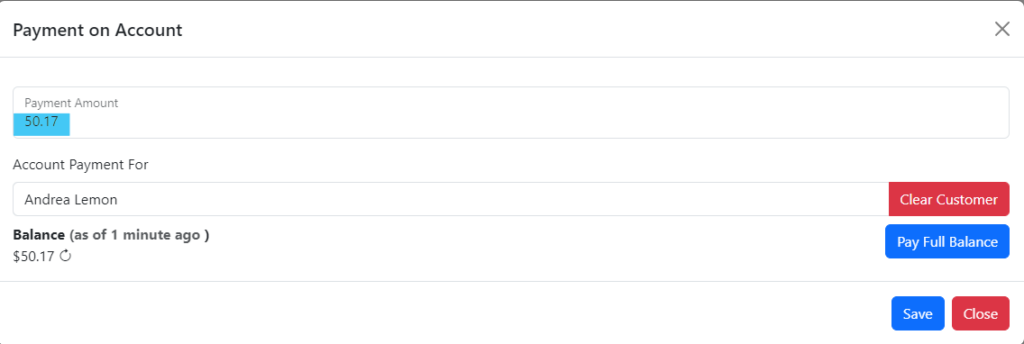
- The Payment on Account item is placed on the receipt and you can now choose the payment method (cash, card, etc.).
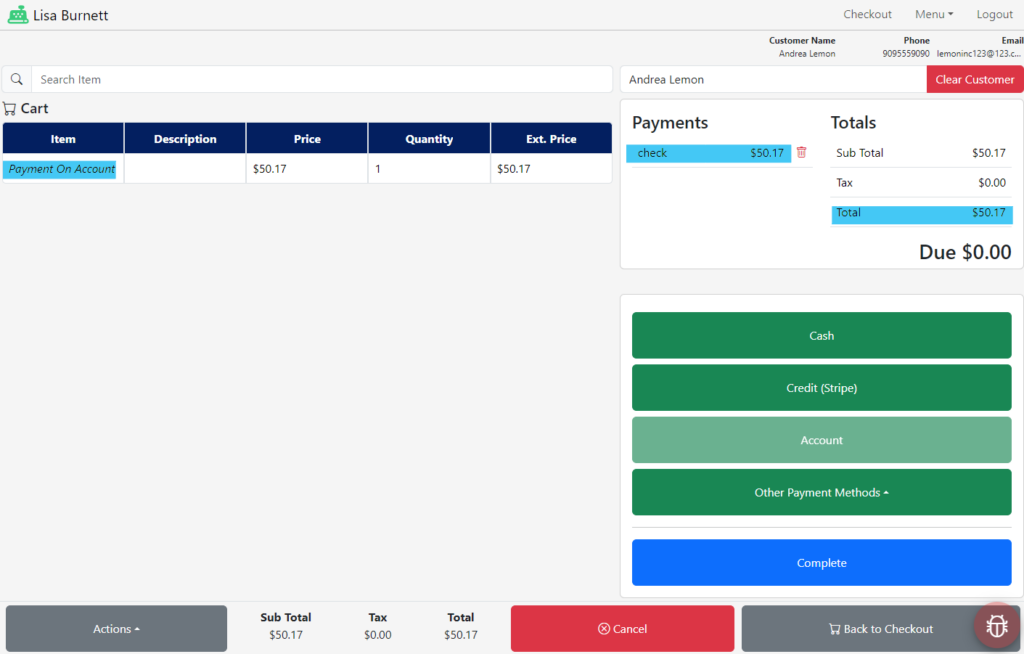
- Complete the transaction.
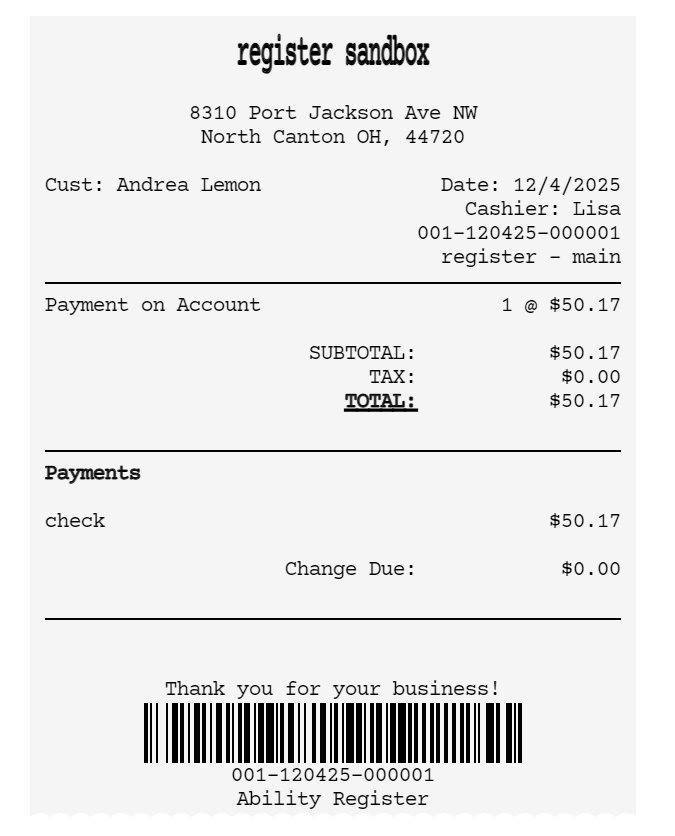
That’s it! register syncs it all back to QuickBooks Online and their balance is updated instantly. In QuickBooks Online, apply the payments to the open invoices.
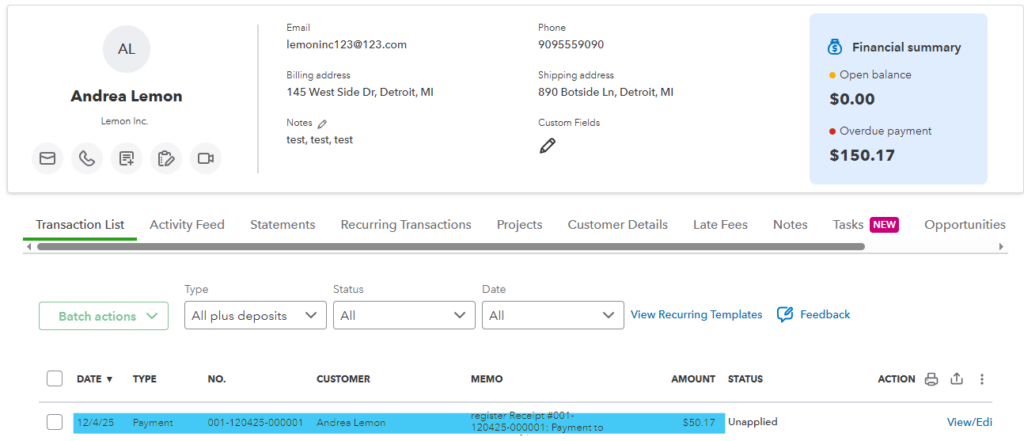
Reggi Tip: Perfect for end-of-month account payoffs or customers who like to chip away at their balance.
Review the Customer’s Updated Balance #
After the payment is complete, you’ll see the new balance right in their profile.
- Payments appear in the Sales History list
- Open balance adjusts automatically
- Everything syncs to QuickBooks Online so your books stay clean
Reggie Tip: Think of it like giving your bookkeeping a little high-five.
You’re All Set! #
With Account Balances and Payments on Account, you and your customers get clarity, flexibility, and smoother checkout moments. And I’ll be right here cheering you on as you explore the new features.
If you need help or want to learn more, hop over to the next article in the wiki, Reggie’s got plenty more tips waiting!

