

Overview of Random Weight Barcode Scanning #
Random weight barcodes, often called embedded barcodes, scanning allows register POS to read barcodes generated by label printing scales. These barcodes contain embedded data such as item number, weight, and price, which register point of sale automatically interprets at checkout.
This feature is ideal for businesses selling variable-weight items like produce, meat, cheese, and bulk goods.
Benefits of Random Weight Barcode Scanning in register #
- Faster checkout: Cashiers can scan instead of manually entering weight or price
- Improved accuracy: Pricing comes directly from the scale—reducing human error
- Streamlined workflow: Weigh – label – scan – complete sale
- Consistent pricing: Ensures the price charged matches the label exactly
- Reduced training time: Simple scan-based process for staff
Settings in register Admin Dashboard #
This area is where the global configuration for how workstations interpret random weight barcodes is set.
To enable and configure random weight barcode scanning:
- Go to the register admin dashboard
- Navigate to the Workstation Settings tab
- Select Manage Random Weight Settings
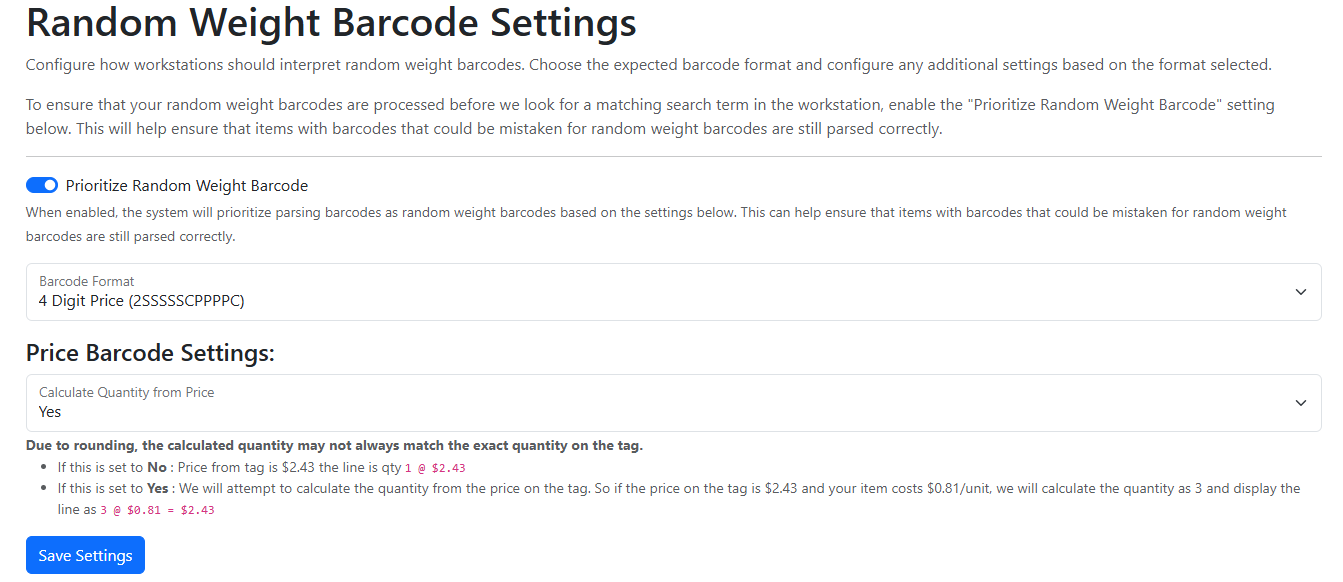
- Prioritize Random Weight Barcode
- Enabling this will make sure a barcode that follows random weight formatting is parsed first as a random weight barcode. This should not commonly cause a problem but if you have twelve or thirteen digit SKUs that start with 2 or 02 then this setting will let you control how register treats those scans.
- Select your barcode format. This is a global setting that must match your Label Printing Scale settings. See the table below for the format options.
| Barcode Format | Example | Scenario |
| 4 digit price | 02SSSSSCPPPPC | Most Common. Works if the calculated price is $99.99 and less. |
| 5 digit price | 02SSSSSPPPPPC | Supports a calculated price greater than $99.99. |
| 4 digit weight | 02SSSSSCWWWWC | Where the product weight will not go over 4 digits. |
| 5 digit weight | 02SSSSSWWWWWC | Where the product weight will be 5 digits or less. |
- a. If you choose a price format Selec if you would like the system to try to calculate the weight of the item. This requires your price per unit to be the same in register and the scale.
| Price Barcode Settings Yes/No for 4 digit price and 5 digit price | ||
| Yes | If this is set to Yes: The scan will calculate the quantity from the price on the tag. So if the price on the tag is $2.43 and your item costs $0.81/unit, we will calculate the quantity as 3 and display the line as 3 @ $0.81 = $2.43 | |
| No | If this is set to No: Price from tag is $2.43 the line is qty 1 @ $2.43 | |
- b. If you choose a weight format you can select how many decimal places it should represent.
| Weight Barcode Settings for 4 digit weight and 5 digit weight | ||
| Weight decimal places | Indicate how many decimal places are used for weight in the barcode. 4 digit example: If the barcode encodes weight as 1234 for 12.34 lbs, you would set this to 2. 5 digit example: If the barcode encodes weight as 12345 for 123.45 lbs, you would set this to 2. | |
- Test your barcode settings.
Testing you random weight barcode settings #
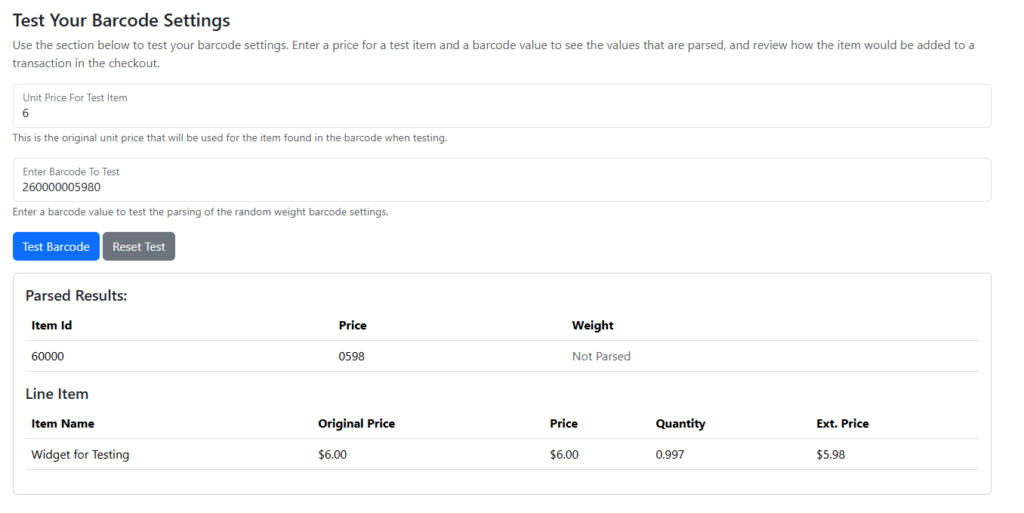
Use this section below to test your barcode settings.
- Enter the unit price
- Enter the barcode to test
- Select Test Barcode and see the parsed results based on your chosen settings
Settings Example
Test Results Example
Defining the Barcode Format #
You will need to define how register interprets your scale’s barcode. This is an example for a 4 digit price format.
4 Digit Price Example Scenario (2SSSSSCPPPPC)
Item: Salami
PLU: 60000
Price per lb: $6.00
Weight: 0.997 lb
Scanned Barcode: 2 60000 0 0598 0
POS Action: The POS recognizes the 2 prefix, identifies product 6000, and automatically charges the customer $5.98.
| Barcode Segment | Digits | Example Digits | Description |
| Prefix | 2 for UPC or 02 for EAN | 2 | Prefix (PLU indicator), Identifies the barcode as a random weight item. |
| Item/PLU Digits | SSSSS | 60000 | Portion of the barcode that identifies the product. This is also the associated SKU in register and QuickBooks Online. |
| Check Digit | C | 0 | Used for 4 digit price and weight formats. |
| Price Digits | PPPP | 0598 | Defines whether the barcode contains:Total price or WeightThis example is for price digit: $5.98 |
| Check Digit | C | 0 | Validates the entire barcode data. |
Tip: These settings must match your scale’s barcode format exactly.
How to Use #
Step 1: Weigh the Item
Place the item on your label printing scale.
Step 2: Print the Label
The scale prints a barcode label with embedded:
- Item/PLU
- Weight or price
Step 3: Scan at checkout
Scan the barcode in register.
Step 4: Automatic Entry
register will:
- Identify the item
- Apply the correct weight or price
- Add it to the transaction instantly
Best Practices #
✔ Work with your local Scale Dealer
Use scales that generate industry-standard barcode formats (commonly 4- or 5-digit PLU-based formats).
✔ Keep PLUs Consistent
Ensure:
- Scale PLUs match item SKU in register
- No duplicate or conflicting codes
✔ Keep Sell Price in Check
QuickBooks Online price = the Label Printing Scale price
✔ Test Before Going Live
Scan several labels to confirm:
- Correct item is recognized
- Weight/price calculates properly
✔ Train Staff on Exceptions
Make sure your team knows:
- How to handle unreadable barcodes
- What to do if an item scans incorrectly
✔ Maintain Your Scale
Work with a local scale dealer for:
- Setup and certification
- Label formatting
- Ongoing support
*register by ability business supports barcode scanning but does not provide direct support for scale hardware.
Troubleshooting #
Check that the scale PLU matches the item SKU in register and QuickBooks Online.
1. Verify barcode format settings
2. Confirm decimal placement
3. Check the sell price in QuickBooks Online
Check label quality and scanner compatibility.

